This step is essential. It ensures customers can easily raise a case when something goes wrong.
1. Where to find the Case Link
The case lodgment link can be found anytime in Merchant Portal (Settings > Integrations).
2. Where to Add the Case Link
We recommend placing your case lodgment link in any or a combination of the following:
- Your Contact Us or Support page (best practice)
- Your Shipping & Delivery Information page
- Your Returns/Delivery Help section
- Your website footer
- Your FAQ page
Many merchants also find it valuable to communicate with customers about their Parcel Protect coverage and Customer Portal link in blog articles, emails and via social media where relevant and suitable.
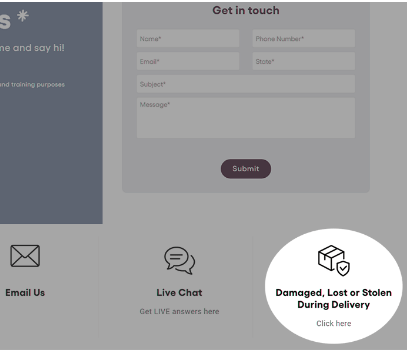
3. Adding the link to any platform
You can add this link to:
- Navigation menus
- Custom code
- Website footers
- Shipping & delivery pages
- Returns pages
Simply copy your Case hyperlink URL from the Merchant Portal (settings > integrations) and paste it into any link field.
Custom link examples
You can also add the case lodgement link to your site manually. Below are a few suggested examples for displaying the case lodgement link on your site along with assets and the hyperlink URL for directing customers to the case lodgement portal.
Image based link example

Lost, Damaged or Stolen during Delivery?
Click Here
Hyperlink:
Text based link example
Lost, Damaged or Stolen during Delivery?
Hyperlink:
4. Optional - Include In Customer Emails
We recommend adding it to:
- Order confirmation emails
- Shipping confirmation emails
- “Out for delivery” email or SMS notifications
- Delivery confirmation emails
Example phrasing:
“Your order is protected. If something goes wrong, you can make a lost, damaged or stolen claim here.”
5. Optional - Additional Branding Assets
You may like to consider including some of Parcel Protect’s assets to increase customer confidence while purchasing from your site. These include logos, display panels and FAQ's, available here.
Some example locations that work well
- Contact Us, Shipping / Delivery / Returns pages
- FAQ’s
- Footer
- Adding the Parcel Protect logo or a small trust message such as “Eligible orders are protected” under your shipping options*
*Note: This option won’t be suitable if you have items that are excluded from coverage
Assets are an optional value add and can be placed on your website at any time – whether that’s during setup or at a later point.